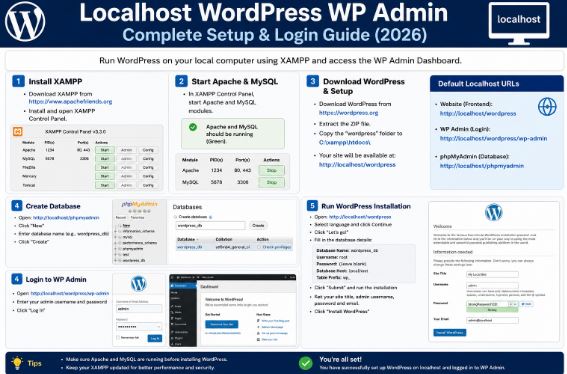
Localhost WordPress WP Admin: Complete Setup & Login Guide (2025)
If you’ve ever tried to build or test a WordPress site on your own computer, localhost WordPress wp-admin is the control panel you’ll rely on for everything from installing plugins to managing content before going live. Getting it set up correctly the first time saves hours of frustration, and this guide walks you through every step clearly and confidently.
Whether you’re a developer running a staging environment or a beginner exploring WordPress for the first time, you’ll learn how to access your local admin dashboard, configure your setup, troubleshoot common login issues, and keep things running smoothly.
What Is Localhost WordPress WP Admin?
Localhost WordPress wp-admin refers to the administration dashboard of a WordPress site running on your local computer, not on a live server on the internet. The term “localhost” simply means your own machine is acting as the web server.
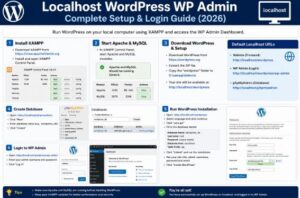
When you install WordPress locally using tools like XAMPP, WAMP, MAMP, or Local by Flywheel, WordPress creates an admin area accessible through your browser at an address like:
http://localhost/wordpress/wp-admin
This is your full-featured WordPress backend identical to what you’d see on a hosted site, where you can design pages, install themes, write posts, configure settings, and more. The key advantage? You can experiment freely without affecting a live website.
External Resource: For official WordPress installation documentation, visit https://wordpress.org/documentation/article/how-to-install-wordpress/
How to Access http://localhost/wordpress/wp-admin
Accessing http localhost wordpress wp admin is straightforward once your local server environment is running. Here’s the step-by-step process:
Step 1: Start Your Local Server
Open your local server application (XAMPP, WAMP, MAMP, or Local by Flywheel) and start both the Apache and MySQL services. Both must be active for WordPress to load.
Step 2: Open Your Browser
Launch any modern browser — Chrome, Firefox, or Edge all work fine.
Step 3: Enter the Admin URL
Type your admin URL into the browser’s address bar. The exact URL depends on how you installed WordPress:
| Installation Folder | Admin URL |
|---|---|
/wordpress/ | http://localhost/wordpress/wp-admin |
/mysite/ | http://localhost/mysite/wp-admin |
| Root directory | http://localhost/wp-admin |
Step 4: Log In
Enter the username and password you created during the WordPress installation. Click Log In and you’re inside the dashboard.
Tip: Bookmark your admin URL. You’ll visit it constantly during local development.
Localhost WordPress WP Admin Setup: Configuring wp-config.php
One of the most important files in any WordPress installation is wp-config.php — and understanding the localhost wordpress wp admin setup config php is essential before your site can function at all.
What Is wp-config.php?
wp-config.php sits in the root of your WordPress folder and tells WordPress how to connect to its database. Without correct settings here, you’ll see a database connection error instead of your site.
Key Settings to Configure
Open wp-config.php in a text editor (Notepad++, VS Code, or any editor works). You’ll need to update these four lines:
define( 'DB_NAME', 'your_database_name' );
define( 'DB_USER', 'root' );
define( 'DB_PASSWORD', '' );
define( 'DB_HOST', 'localhost' );
What each setting means:
- DB_NAME The name of the database you created in phpMyAdmin (e.g.,
wordpress_db) - DB_USER For local servers, this is almost always
root - DB_PASSWORD Typically empty for XAMPP, MAMP often uses
rootas the password - DB_HOST Almost always
localhost, unless your setup uses a different port
Creating the Database in phpMyAdmin
Before editing wp-config.php, you need an actual database:
- Go to
http://localhost/phpmyadmin - Click New in the left sidebar
- Enter a database name (e.g.,
wordpress_local) - Choose utf8mb4_unicode_ci as the collation
- Click Create
Now update your wp-config.php with this database name and run the WordPress installer.
External Resource: WordPress’s official guide to editing wp-config.php: https://developer.wordpress.org/advanced-administration/wordpress/wp-config/
Localhost WordPress WP Admin Login: Fixing Common Issues
The localhost WordPress wp-admin login page should be simple but a few common problems trip people up. Here’s how to handle the most frequent ones.
Problem 1: “This site can’t be reached”
This almost always means your local server isn’t running. Open XAMPP/WAMP/MAMP and make sure Apache and MySQL show green (running). Then try again.
Problem 2: “Error establishing a database connection”
Your wp-config.php database settings are wrong. Double-check:
- The database name matches exactly what’s in phpMyAdmin
- DB_USER is
root(or your custom username) - DB_HOST is
localhost
Problem 3: Forgot Your Admin Password
You have two clean options:
Option A — Reset via phpMyAdmin:
- Open
http://localhost/phpmyadmin - Select your WordPress database
- Open the
wp_userstable - Find your user row and click Edit
- Change the
user_passfield — selectMD5from the function dropdown and type your new password - Click Go
Option B — Use WP-CLI (if installed):
wp user update admin --user_pass=newpassword123
Problem 4: Redirect Loop on Login
This happens when WordPress has incorrect URL settings. Fix it by adding these lines to wp-config.php temporarily:
define('WP_HOME', 'http://localhost/wordpress');
define('WP_SITEURL', 'http://localhost/wordpress');
Problem 5: White Screen of Death
Usually a PHP memory or plugin conflict. Add this to wp-config.php:
define('WP_DEBUG', true);
define('WP_MEMORY_LIMIT', '256M');
This will reveal the actual error causing the blank screen.
Best Practices for Managing Localhost WordPress WP Admin
Once you’re inside your localhost wordpress wordpress wp-admin dashboard, a few habits will keep your development environment clean and efficient.
Keep Debug Mode On During Development
Always enable WP_DEBUG while developing locally. It surfaces PHP errors and warnings that would otherwise be silent:
define('WP_DEBUG', true);
define('WP_DEBUG_LOG', true);
Logs are saved to /wp-content/debug.log.
Use a Local-Specific wp-config.php
If you plan to push this site to a live server eventually, consider maintaining two config files one for local, one for production. This prevents accidentally exposing local database credentials.
Disable Automatic Updates Locally
Unexpected WordPress core or plugin updates can break your local build mid-development. Add this to wp-config.php:
define('AUTOMATIC_UPDATER_DISABLED', true);
Install Only What You Need
Local environments can get sluggish with too many active plugins. Keep your localhost installation lean only activate plugins relevant to what you’re currently building or testing.
Regularly Export Your Database
Use phpMyAdmin’s Export feature to back up your local database before major changes. This takes 30 seconds and can save hours of rebuilding.
Popular Local Server Tools for WordPress Development
Not sure which tool to use for running WordPress locally? Here’s a quick comparison:
| Tool | Best For | OS Support | Notes |
|---|---|---|---|
| Local by Flywheel | Beginners & professionals | Windows, Mac | Easiest setup, built for WordPress |
| XAMPP | Full control, multi-project | Windows, Mac, Linux | Most widely used |
| MAMP | Mac users | Mac (Windows version available) | Simple interface |
| WAMP | Windows users | Windows only | Lightweight and fast |
| Laragon | Developers | Windows | Fast, modern alternative |
Local by Flywheel is increasingly popular because it handles the entire WordPress stack automatically no manual database creation or config file editing required.
External Resource: Download Local by Flywheel at https://localwp.com/
FAQ: Localhost WordPress WP Admin
Q: What is the default localhost WordPress wp-admin URL?
The default URL is http://localhost/wordpress/wp-admin if WordPress is installed in a folder named “wordpress.” If it’s in a different folder or the root directory, replace “wordpress” with your folder name or remove it entirely (http://localhost/wp-admin).
Q: Why can’t I log into http localhost wordpress wp admin even with the correct password?
The most common causes are: cookies being blocked by your browser, a redirect loop due to incorrect site URL settings, or a caching plugin interfering. Try clearing your browser cookies, or add WP_HOME and WP_SITEURL constants to wp-config.php to force the correct URL.
Q: How do I find my localhost WordPress wp admin username if I forgot it?
Open phpMyAdmin at http://localhost/phpmyadmin, navigate to your WordPress database, and open the wp_users table. Your username is listed in the user_login column. You can reset the password directly in that same table.
Q: Can I access localhost WordPress wp-admin from another device on my network?
Yes, instead, use your computer’s local IP address (e.g., http://192.168.1.5/wordpress/wp-admin). You may also need to adjust your firewall settings. Keep in mind this only works on your local network and isn’t accessible from the internet.
Q: Is localhost WordPress wp-admin the same as a live site’s admin panel?
Functionally, yes, all the same features are available. The only differences are performance (local sites are faster with no network latency) and that your local site isn’t publicly accessible. Plugins, themes, and settings behave identically, which is exactly what makes local development so useful.
Conclusion: Take Full Control of Your Local WordPress Site
Mastering localhost WordPress wp-admin gives you a powerful, risk-free environment to build, test, and perfect WordPress sites before they ever touch a live server. From correctly setting up wp-config.php to troubleshooting login issues and keeping your development workflow organized the skills in this guide will serve you on every project.
The next step is simple: if you haven’t already, pick a local server tool (Local by Flywheel is the easiest starting point), install WordPress, and open your admin dashboard. Everything else — themes, plugins, custom code — flows from there.
Ready to dive deeper? Explore the official WordPress Developer Resources for documentation on hooks, APIs, and advanced configuration that will take your local development to the next level.
Published for developers, designers, and WordPress enthusiasts building better sites locally.